显示标签为“iPhone”的博文。显示所有博文

2018年1月17日星期三

How to Transfer HEIC Photos from iPhone (X/8/7) to PC

"How can I export iPhone HEIC photos to PC for a backup?"

What Is HEIC?
HEIC is the file extension of images compressed with HEIF (High Efficiency Image Format) standard, which stores still images and image sequences in HEVC encoded videos. Featuring higher compression, HEIC images are encoded in smaller size (half of JPEG) while delivering better quality for capturing a more extended color range to increase photo accuracy. Also, a HEIC file can be a container for multiple images making live photos easy and well.

iOS 11 & HEIC
Apple puts native support of HEIC on iOS 11 to save storage on iPhone/iPad/iCloud which will be taken up by photos; enhance image quality and edit photos easily. iOS 11 devices armed with A9 and new processors (iPhone 7 or newer; iPad Pro; iPad [2017] or newer) can accept HEIC. To enable HEIC on iPhone, go to Settings > Camera > Format > select High Efficiency option.

You may have set HEIC as the format for photos on your iPhone for space saving. And sometimes, another requirement happens: to transfer iPhone HEIC photos from to PC for a backup in case unexpected disappearance, mistakenly deleting…Now, follow us to complete iPhone HEIC photos transfer with ease.

Best Software to Transfer iPhone HEIC Photos to PC

HEIC photos will be automatically uploaded to iCloud if turning on iCloud Photo Library on iPhone. But iCloud is not the best recommendation to sync iPhone HEIC photos for several reasons.

1. iCloud can only access photos on iPhone via network (3G/4G, Wi-Fi).
2. Although HEIC photos occupy less space in iCloud, 5GB free storage is still not enough if you have saved lots of large files (like 4K movies/TV shows).
3. iCoud photo not syncing issue sometimes appears result in a failure to backup some photos.

Alternatively, WinX MediaTrans, the expert iPhone photo transfer software, can well transfer HEIC photos from iPhone X/8/7 to PC without trouble. No network needed, it only requires you to connect iPhone with PC via a USB cable to export HEIC photos in a few clicks. WinX MediaTrans enables you to freely select one photo, multiple photos or all photos for syncing. It brings a superfast and stable photos transfer process without any interruption or data loss.

How to Transfer iPhone HEIC Photos to PC

At the start, please DOWNLOAD and install WinX MediaTrans on your PC (fully compatible with Windows 10 and lower). Next, follow the steps below to transfer HEIC photos from iPhone to PC.

Step 1. Plug in iPhone into PC via a USB cable. Launch WinX MediaTrans. If the connection succeeds, you can see your iPhone name and iOS version on the main interface. If "not connected" appears, go to "Fix iPhone Not Connecting to Computer" for a solution.

Step 2. Click Photo Transfer on the main interface to access the page where all photos on your iPhone will be listed.


Step 3. Select one or more or all HEIC photos you want to transfer to PC and then click Export button on the top menu bar.

Please note that there are two options: Export and Export HEIC to JPG.
• If you just want to transfer HEIC photos without changing format for a backup, please check Export.
• If you want to open HEIC on PC after exporting from iPhone, it is suggested to check Export HEIC to JPG because Windows doesn't support HEIC at present.


Destination folder which is used to save the exported HEIC photos will pop up after the process is finished. You can move, open or edit photos later.

2016年11月3日星期四

How to Unlock iPhone

When more and more dissatisfactions with current carrier for expensive charges, poor support and features etc, comes, we would like to unblock iPhone to get it SIM-free and switch to other carriers which can meet our requirements better. So, how to unlock iPhone?

It's quite OK to contact carriers who support unlocking helping you get an unlocked iPhone. On the other hand, there are a certain number of carriers in different countries not allowing users to unlock iPhone to contact-free. Considering two different instances, ways of iPhone unlock are varied. Here, follow us to get how to make your iPhone unlocked.

How to Unlock iPhone (7/7 Plus)

Way 1. Ask for Help from Carrier

First of all, you should be aware of whether your carrier offers unlocking or not. Some popular carriers in USA, like AT&T, T-Mobile, Verizon can assist you to unlock your iPhone if you have an eligible device meeting all requirements. >> Check Widewide iPhone Carrier Support and Features

Steps:
1. Follow the instruction given by your carrier to ask for an iPhone unlock. Some need you to fill a request form. Some may require you to download official unlock app. When your request is confirmed, your carrier will unlock your iPhone directly or send you an unlock number. If you get nothing several days later, contact your carrier again.

2. Once your iPhone is unlocked, remove the original SIM card and insert the new one. After that, set up your iPhone again. If you haven't gotten a new SIM card right now, you should backup iPhone and then reset to erase all content and settings of your iPhone. Later, restore iPhone from backup.

Notice: If you have a message telling that your SIM card is incompatible with the device in iTunes, please follow this guide to fix.
1. Restore iPhone to factory settings.
2. After confirming that your carrier indeed unlocks your iPhone, restore iPhone from backup.

Way 2. Try IMEI Unlock

Every iPhone has a unique IMEI number. Once the number is shown officially unlocked in Apple's database, your iPhone with this number will be whitelisted. Based on feedbacks, IMEI unblock technology is tested as almost 100% working. Most IMEI unlock services support all iPhone models including newest iPhone 7/7 Plus and no jailbreak or hacking is required. Also, iOS upgrade or iTunes syncing will not make your iPhone re-locked.

How to use IMEI unlock? At the beginning, you should know your iPhone IMEI number. There are many ways to find this number.

1. Dial *#06# with your iPhone and a 15-digital number will be given.
2. Connect your iPhone to computer. Open iTunes and select your device. Move to Summary. Pay attention to Phone Number and click it until IMEI number is shown.
3. Open Settings on iPhone. Click General > About and you will get this IMEI number.

The next step is to find a reliable IMEI unlock service. You can search iPhone IMEI unlock on ebay and pick out one referring to ratings, sales and reviews. And, iPhoneIMEI.net is recognized as one of the fastest and most effective unlocking methods. It can unblock iPhone from mainstream carriers in USA, Canada, Australia, Japan and some European countries. Most users give 5 stars and highly acclaim it as perfect solution to unlock any iPhone models.

2016年8月16日星期二

Can't Download Pokémon Go on iPhone in Your Country? This Issue Comes to an End!

These days, you must be surrounded by Pokémon Go. Pokémon Go appears when you read news, browse YouTube videos, open Twitter, Facebook or any other social networking app, walk on the road, etc. It is no exaggeration to say that the whole world is playing Pokémon Go, or on the way to get Pokémon Go because this highly popular game is only available in the UK, US, Germany, Australia and New Zealand as of July 14. So, if you're not live in one of the supported areas, you can't download Pokémon Go on your Apple device from App Store or Android from Google Play Store in a regular way. However, there's a will, there's a way. People from other countries can still get Pokémon game downloaded in a special solution.

In this post we will show you how to download Pokémon Go on iPhone for free. For Android users who want to embrace Pokémon Go craze, please switch to download Pokémon Go for Android.

How to Download and Install Pokémon Go for iPhone in Any Location?

Before we clarify how to get Pokémon game on iPhone, we'd like to let you know:
1. Pokémon Go is free to play and offers in-game purchases;
2. Network connection and GPS capability are necessities;
3. Pokémon Go can be downloaded to iPhone® 5/5c/5s/SE/6/6s/6 Plus/6s Plus with iOS Version 8 - 9 installed. iPhone 4s or earlier iPhone aren't supported.

How to download Pokémon Go on iPhone if you aren't in launch countries?

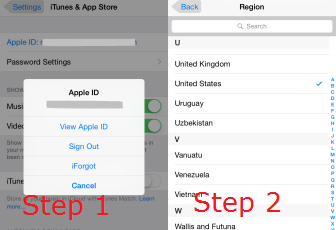
Step 1. Sign out of your Apple ID on iPhone.
Go to Settings of your iPhone, locate iTunes & App Store and tap it, tap on Apple ID: **@**.com (your current email), and then hit Sign Out.

Step 2. Change the region on your iPhone.
Back to Settings, hit General, tap on Language & Region, and then tap on Region and check off a country that is in the Pokémon Go supported countries list, for example United States.


Step 3. Create new Apple ID on iPhone.
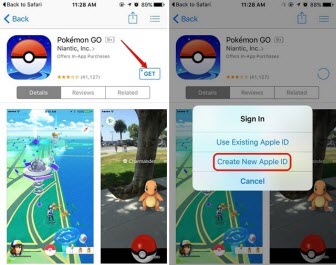
1. Back to App Store on your iPhone, search for Pokémon Go, "GET" it and hit "Install". (Tap Change Store if it says the item isn't available in the current store or it stays stuck on your previous region.)
2. Check "Create New" in the pop up. Then, you should fill out the required information. Address and phone number should be from the region you set before. Don't worry about this. You can google out easily. Tap on "None" if credit card details are required, otherwise you need a credit card from the specific region chosen.
3. Shortly, a confirmation email asking you to verify Apple ID will be sent to you. Just verify it according to instruction.


Step 4. Download and install Pokémon Go for iPhone.
This is the final step. You just need to download Pokémon Go as people in U.S. or other supported regions do: search for Pokémon Go ->tap Get -> tap Install -> login in your new U.S. iTunes Account if you aren't already signed in.
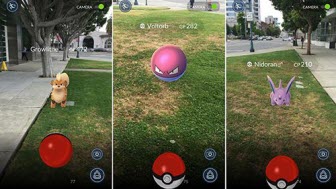
Later, you can play the highly popular Pokémon game on iPhone, discovering and capturing the Pokémon all around you in the real world.


Notes and Warnings:
1. When you need use your existing apps and games, you should change the region back to your local country and your iTunes account back to your local account. When you want to play Pokémon Go, switch to U.S. and U.S. account.
2. Once Pokémon Go is available in your region, you can sign back in with your old Apple ID. But you may need to re-download Pokémon Go on your iPhone. Luckily you'll be able to play Pokémon Go where you left off, because your data is saved to the cloud.
3. Make sure you have enough data to play Pokémon Go, because this graphically-rich and always-on game will consume a fair amount of data.
4. One of the most important tips for Pokémon Go players is turn on Battery Saving mode built in this game app. It helps you save much battery without missing a nearby Pokémon.
5. Keep yourself in a safe place while playing Pokémon Go outside especially on the road.

2016年3月20日星期日

How to Download Movies to iPhone/Android for Free

"Where can I watch free movies on my iPhone 6S? Most movie sites use flash which iOS doesn't support. I believe html5 sites work but it seems hard to find ones for movies. Every movie I've looked at on a movie app isn't free."

There is more than one way to watch HD movies on iPhone. However, to get HD movies on iPhone doesn't always mean having to be helped by a movie app. The article is going to introduce a different method in the very beginning - download HD full movies to iPhone 5se/5S/6/6S Plus or other iOS devices for offline playback without jailbreak or installing the traditional movie streaming apps like Showbox and Netflix. I believe it will be helpful especially when often you have no internet connection.

1. Download Movies, Convert & Sync to iPhone

The method roughly goes like: download the HD/UHD movies free you found on YouTube, DailyMotion and other popular online video sites using WinX HD Video Converter on Windows PC or Mac, choose the iPhone profile and convert and compress the files with the same software, and then transfer/sync the movies to iPhone for offline watching anywhere anytime!

How to Download Free Movies to iPhone with an HD Video Downloader

If you are a frequent traveler or airline passenger, the first method will do the trick. The HD video converter we will be using in this guide.

Step 1. Click "YouTube URL" button to download online movies from YouTube, DailyMotion, MTV, Break, Myspace and other 300+ online video sharing sites. Alternatively, load the movie source to WinX HD Video Converter Deluxe on PC or Mac by tapping "+Video" button. (It uniquely supports a lot of adult movie sites for uses aged over 18. See the full list of online video sites supported).

Step 2. Find Output Profile -> Apple Device -> to iPhone Video -> iPhone 6/6S, Plus; iPhone 5S, 5C; iPhone 5; iPhone 4S; iPhone 3G, 3GS. Choose an option according to the model of your iPhone and click OK.

Step 3. Make all other settings that you deem necessary. Click RUN and let the video downloading and conversion begin at the same time.

Step 4. Sync or (AirPlay) stream the downloaded full-length HD (4K included) movies from your computer to iPhone. You can watch the videos anytime without network connection.

 2. Download Movies to iPhone Using Movie Download Apps

In a more conventional way, you can choose to install (free) movie downloading apps on iPhone. Here are some top choices for movie watching on iOS mobiles as samples:

Crackle: If you are in US, Canada, Australia, Latin America or Brazil, you are entitled to watch Hollywood movies and TV shows using this popular app together with 25 million other users.

Netflix: As the leading subscription service, this mobile app allows its subscribed users to watch and stream movies and TV shows to iPhone, Android, etc., and it also has apps for smart TV, PC, Mac and more. It is available in 190 countries; however, it is only free for the first month.

Popcorn Time: It allows you to watch movies instantly in high definition and quality, with subtitles for free. An app was released only for jailbroken iOS devices on September 30, 2014. But now it's possible to install Popcorn Time on iPhone without jailbreak by some means. Indeed as a BitTorrent client, Popcorn Time is a potential treat to Hollywood.

Hulu Plus: At $10 a month, it offers movie watching and streaming services. It works well on iPhone 6/6 Plus with a well-received UI. No registration required.

IMDb: As a world-renowned film information collection site, it also comes with the IMDb app available in iTunes App stores in about ten languages. Through the app, you have access to all title and name pages; you can see every detail about every movie and TV show ever made, including who was in it, who made it, the plot, user ratings, trailers, photos, reviews, quotes, goofs and trivia. After signing in, you can rate the movies, manage your Watchlist, create and share title lists, set your favorite theaters and so on.

However, those iPhone movie apps do not offer free movie downloading service, so you still have to use some third-party tools to record, save or download movies to your iPhone 5/5S/6/6S/7 (Plus) that is running iOS 8 or 9.

3. Watch Movies on iPhone with Free Movie Streaming Apps for iPhone

The above mentioned apps for watching movies like Amazon Prime, Netflix and Hulu Plus also offer movie streaming services. A few of them allow streaming torrented movies on iOS 8/9 without jailbreaking.

Streaming movie is a good way and trend to watch movies on iPhone. In addition, there are many other trustworthy apps supporting movie streaming too, such as ShowBox, Moviebox, Playbox HD, Sky HD App, Google Play, Flipps TV, DIREC TV and Viewster.

4. Rip/Convert DVD Movies to iPhone Friendly Files

From time to time, the video you want to download isn't available on mobile devices.

Remember there still exists a traditional way to always watch full Hollywood movies successfully, that is, buying the DVDs, or renting them (from RedBox, for example). Now, as technology boosting, the DVDs playback manners are diversified. The DVD movies can also be watched on iPhone, iPad, Apple TV and Android devices after being ripped with a free DVD ripper.